tag #navbar-iframe { display: none !important; }

24/08/2012

How to maximize C++ in Windows 7


Below Is the step-by-step procedure how to install Turbo C++ on 64 bit or 32 bit Windows 7.
1. Install the software DOSBox ver 0.74 : download here
2. Create a folder,for example „Turbo“ (c:Turbo)
3. Download and extract TC into the Turbo folder (c:Turbo): download here
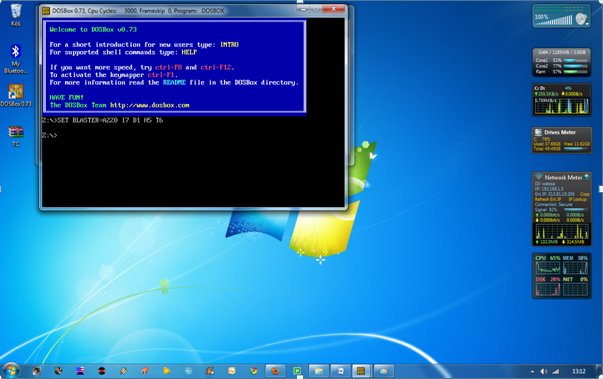
4. Run the DOSBox 0.74 from the icon located on the desktop:
steps to install dosbox 0 74 in window 7
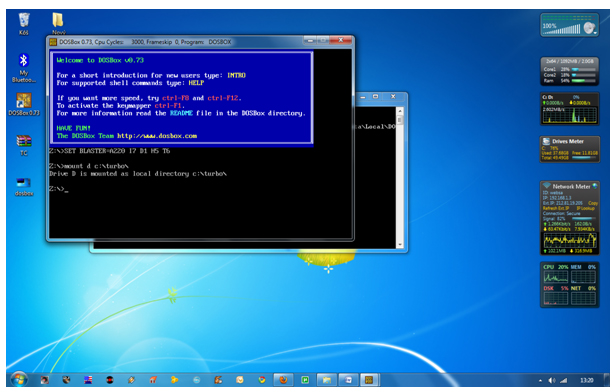
5. Type the following commands at the command prompt [Z]: mount d c:Turbo
[The folder TC is present inside the folder Turbo]
Now you should get a message which says:
Drive D is mounted as a local directory c:Turbo
install turbo c++ on Windows 7 64bit,turbo c++ in full screen ,c++,turbo c in fullscreen on windows 7,C++ tips and tricks,cool tips and tricks, how tos, c++ in  full screen on windows 7, TECHNOLOGY,
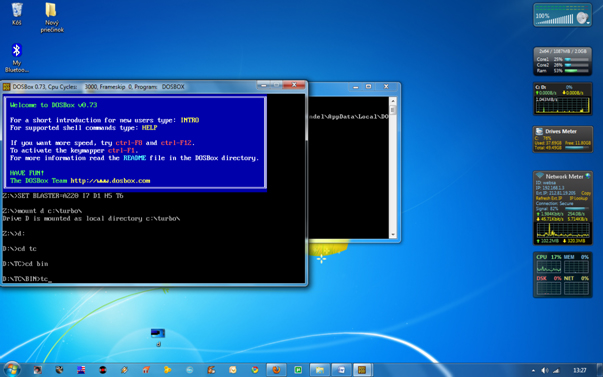
6. Type d: to shift to d:
install turbo c++ on Windows 7 64bit,turbo c++ in full screen ,c++,turbo c in fullscreen on windows 7,C++ tips and tricks,cool tips and tricks, how tos, c++ in  full screen on windows 7, TECHNOLOGY,
7. Next follow the commands below:
cd tc
cd bin
tc or tc.exe [This starts you the Turbo C++ 3.0]
install turbo c++ on Windows 7 64bit,turbo c++ in full screen ,c++,turbo c in fullscreen on windows 7,C++ tips and tricks,cool tips and tricks, how tos, c++ in  full screen on windows 7, TECHNOLOGY,
8. In the Turbo C++ goto Options>Directories>
Change the source of TC to the source directory
[D] ( i.e. virtual D: refers to original c:Turbo .
So make the path change to something
like D:TCinclude and D:TClib respectively )

How to start TurboC++ in the DOSBox automatically:

You can save yourself some time by having DOSBox automatically mount
your folders and start TurboC++:
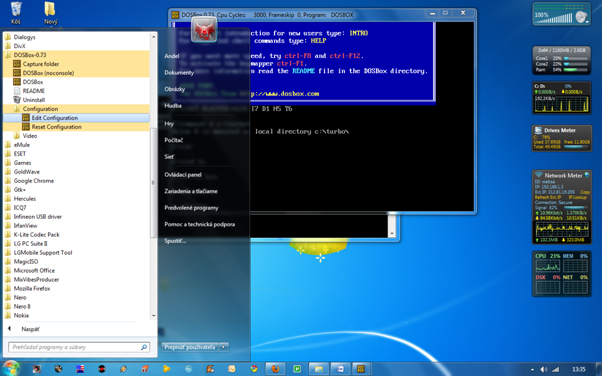
For DOSBox versions older then 0.74 browse into program installation folder and open the
dosbox.conf file in any text editor. For version 0.74 go to Start Menu and
click on “Configuration” and then “Edit Configuration“.
Then scroll down to the very end, and add the lines
which you want to automatically execute when DOSBox starts.
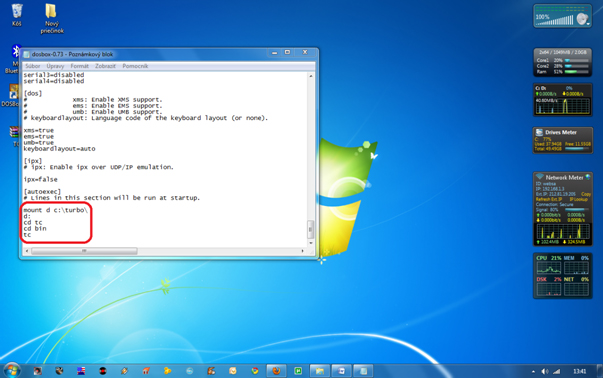
Automatically mount and start Turbo C++3.0 in DOSBox ver 0.74:
install turbo c++ on Windows 7 64bit,turbo c++ in full screen ,c++,turbo c in fullscreen on windows 7,C++ tips and tricks,cool tips and tricks, how tos, c++ in  full screen on windows 7, TECHNOLOGY,
Scroll down to the very end, and add the lines:
install turbo c++ on Windows 7 64bit,turbo c++ in full screen ,c++,turbo c in fullscreen on windows 7,C++ tips and tricks,cool tips and tricks, how tos, c++ in  full screen on windows 7, TECHNOLOGY,
Those commands will be executed automatically when DOSBox starts!
Please note:
Full screen: Alt and Enter
When you exit from the DosBox [precisely when u unmount the virtual drive where
Turbo C++ 3.0 has been mounted] all the files you have saved or made changes in
Turbo C++ 3.0 will be copied into the source directory
(The directory which contains TC folder)
Don’t use shortcut keys to perform operations in TC because they might be a
shortcut key for DOSBOX also . 
Eg : Ctrl+F9 will exit DOSBOX rather running the code 

13/08/2012

iOS 6 themed rom(Miui) for Galaxy s2 (really great


Fast and Stable | The first Rom with Mi-Voice

Changelogs (v2.1 | v2.2) :
  • based on the current MIUI stock-rom
  • language (DE|EN) by Andy25 - many thx.
  • new dream-kernel with good battery-life
  • system new optimized
  • complete 100 % themed
  • Mi-Voice (iOS6 Edition v2.2 - coming soon)
  • 3-way-reboot
  • iOS popup apk
  • iOS keyboard
  • new MIUI-bootanimation
  • Samsung email (included Widget) in iOS6 theme
  • iOS animated weather-lockscreen (by Moviestar)
  • 9s Weather (is required for animated weather-lockscreen)
  • Fancy Widgets
  • AdAway (ad blocking)
  • Dropbox
  • Adobe Flashplayer
  • Easy mp3 Musicdownload
  • Youtube (themed)
    and more ...


Small bug :
  • super video (video popup) have fc - I removed it in v2.2


Download Rom :
MIUI iOS6 Edition v2.1 |
Mirror
MIUI iOS6 Edition v2.2 (coming soon)


... enjoy

12/08/2012

How to Install Windows 8 to a Tablet/Slate from USB

*** NOTE TO MODS: I ACCIDENTALLY HIT SUBMIT WHEN I PUT IN MY TITLE AS HOWTO. PLEASE RENAME OR DELETE & I WILL REPOST TO FOLLOW RULES ***

A lot of people have asked me in the past, how can I use my Samsung Series 7 Slate to run the latest Windows 8 (originally Dev Preview when I first released this) and actually I have been seeing it more often that people can't figure out how to get it on their Slate...

With that being said, I recommend you visit my updated post on my Blog that reflects Windows 8 RC here install & my blog contains other Windows 8 (and WP7) related content if you're bored. Otherwise to save you time, below is the steps/full blog post and a video created (This is my video from my YouTube Channel "TechMeShow", I permit the video being here) regarding making the USB Stick, which is old news but still people continue to ask and really get hundreds of views due to Google Searches.

ISO US-ENGLISH DOWNLOADS

Download 64-Bit US-EN Windows 8 Release Preview Here (ISO)

OR

Download 32-Bit US-EN Windows 8 Release Preview Here (ISO)

HOWTO Install Windows 8 Release Preview on MOST Tablet/Slate's

1). Download the edition of Windows 8 you want.
Tip: Download ISO from above.

2). Grab the Microsoft USB Disc Creator ('Should' use a USB Stick + Available USB Slot)
Tip Link: Microsoft USB Disc Creator Download Page. Video below.

3). After you use the Disc Creator, pop in the USB Stick to your computer and DO NOT RUN INSTALL ON WINDOWS 7 (We want it on a Tablet/Slate, remember?).

4). Now, reboot the tablet/slate, hit the Home Screen button only 1 time (give it a moment, don't rush, it'll happen) and select the USB Stick
Tip: To navigate up and down, select the left (or varies on device) Up/Down Volume Control and once selected, press the "Screen Lock".

5). Product Key: TK8TP-9JN6P-7X7WW-RFFTV-B7QPF

6). Follow the steps for installation and your set!


VIDEO: USB BOOTING FROM ISO
http://youtu.be/UdAcGtz6PFU

If you already knew all of this, terrific. However, again and not to brag, when I get at least 200 daily visits because people can't figure out how to install Windows 8 on a Tablet/Slate (yes pretty easy), I thought why not post it here because obviously not enough people are getting it.