FAST & STABLE WITH MI-VOICE
Changelogs (v2.1 | v2.2) :
based on the current MIUI stock-rom
language (DE|EN) by Andy25 - many thx.
new dream-kernel with good battery-life
system new optimized
complete 100 % themed
Mi-Voice (iOS6 Edition v2.2 - coming soon)
3-way-reboot
iOS popup apk
iOS keyboard
new MIUI-bootanimation
Samsung email (included Widget) in iOS6 theme
iOS animated weather-lockscreen (by Moviestar)
9s Weather (is required for animated weather-lockscreen)
Fancy Widgets
AdAway (ad blocking)
Dropbox
Adobe Flashplayer
Easy mp3 Musicdownload
Youtube (themed)
and more ...
Small bug :
super video (video popup) have fc - I removed it in v2.2
Video:
Download:
http://foonode.net/file/5n6h (faster one)
OR
http://www.multiupload.nl/65LS0E3FTT
|
17/12/2012
Iphone Ios 6 themed new MiUi Rom (with Mi-Voice)

24/08/2012
How to maximize C++ in Windows 7
Below Is the step-by-step procedure how to install Turbo C++ on 64 bit or 32 bit Windows 7.
| 1. Install the software DOSBox ver 0.74 : download here |
| 2. Create a folder,for example „Turbo“ (c:Turbo) |
| 3. Download and extract TC into the Turbo folder (c:Turbo): download here |
| 4. Run the DOSBox 0.74 from the icon located on the desktop: |
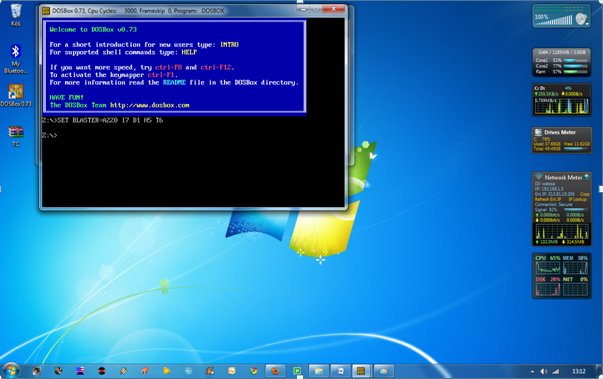 |
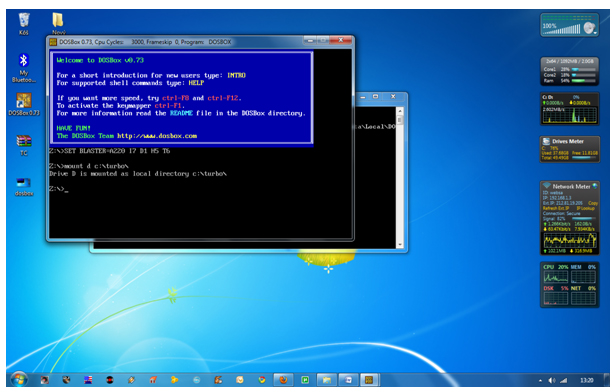
| 5. Type the following commands at the command prompt [Z]: mount d c:Turbo [The folder TC is present inside the folder Turbo] |
| Now you should get a message which says: Drive D is mounted as a local directory c:Turbo |
 |
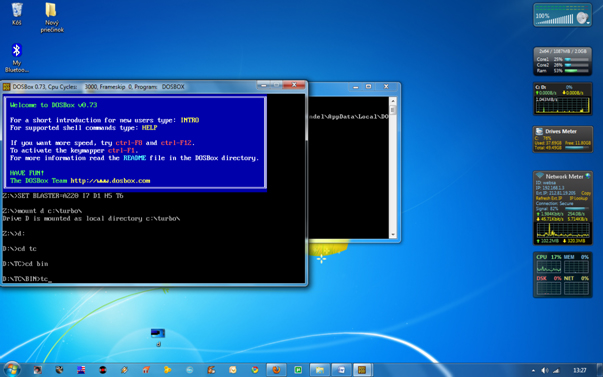
| 6. Type d: to shift to d: |
 |
| 7. Next follow the commands below:
cd tc
cd bin
tc or tc.exe [This starts you the Turbo C++ 3.0]
|
 |
| 8. In the Turbo C++ goto Options>Directories> Change the source of TC to the source directory [D] ( i.e. virtual D: refers to original c:Turbo . So make the path change to something like D:TCinclude and D:TClib respectively ) |
How to start TurboC++ in the DOSBox automatically:
You can save yourself some time by having DOSBox automatically mount
your folders and start TurboC++: |
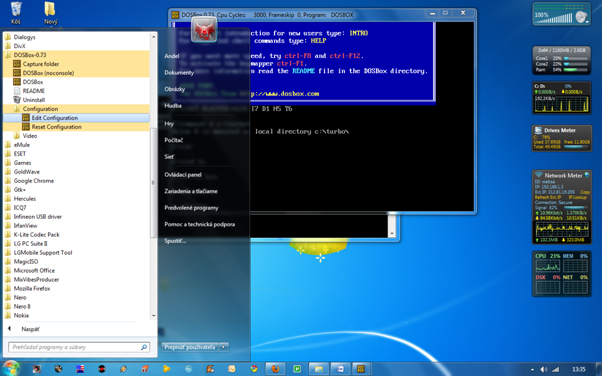
| For DOSBox versions older then 0.74 browse into program installation folder and open the dosbox.conf file in any text editor. For version 0.74 go to Start Menu and click on “Configuration” and then “Edit Configuration“. Then scroll down to the very end, and add the lines which you want to automatically execute when DOSBox starts. |
| Automatically mount and start Turbo C++3.0 in DOSBox ver 0.74: |
 |
| Scroll down to the very end, and add the lines: |
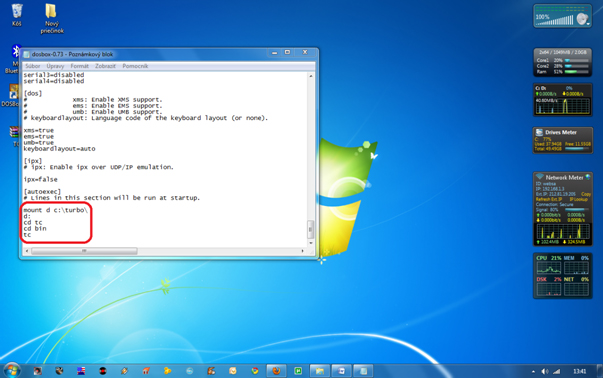 |
| Those commands will be executed automatically when DOSBox starts! |
| Please note:
Full screen: Alt and Enter
When you exit from the DosBox [precisely when u unmount the virtual drive where
Turbo C++ 3.0 has been mounted] all the files you have saved or made changes in Turbo C++ 3.0 will be copied into the source directory (The directory which contains TC folder)
Don’t use shortcut keys to perform operations in TC because they might be a
shortcut key for DOSBOX also . Eg : Ctrl+F9 will exit DOSBOX rather running the code |
13/08/2012
iOS 6 themed rom(Miui) for Galaxy s2 (really great

 Fast and Stable | The first Rom with Mi-Voice
 Changelogs (v2.1 | v2.2) :
- based on the current MIUI stock-rom
- language (DE|EN) by Andy25 - many thx.
- new dream-kernel with good battery-life
- system new optimized
- complete 100 % themed
- Mi-Voice (iOS6 Edition v2.2 - coming soon)
- 3-way-reboot
- iOS popup apk
- iOS keyboard
- new MIUI-bootanimation
- Samsung email (included Widget) in iOS6 theme
- iOS animated weather-lockscreen (by Moviestar)
- 9s Weather (is required for animated weather-lockscreen)
- Fancy Widgets
- AdAway (ad blocking)
- Dropbox
- Adobe Flashplayer
- Easy mp3 Musicdownload
- Youtube (themed)
and more ...
Small bug :
- super video (video popup) have fc - I removed it in v2.2
Download Rom :
MIUI iOS6 Edition v2.1 | Mirror
MIUI iOS6 Edition v2.2 (coming soon)
... enjoy

12/08/2012
How to Install Windows 8 to a Tablet/Slate from USB
*** NOTE TO MODS: I ACCIDENTALLY HIT SUBMIT WHEN I PUT IN MY TITLE AS HOWTO. PLEASE RENAME OR DELETE & I WILL REPOST TO FOLLOW RULES ***
A lot of people have asked me in the past, how can I use my Samsung Series 7 Slate to run the latest Windows 8 (originally Dev Preview when I first released this) and actually I have been seeing it more often that people can't figure out how to get it on their Slate...
With that being said, I recommend you visit my updated post on my Blog that reflects Windows 8 RC here install & my blog contains other Windows 8 (and WP7) related content if you're bored. Otherwise to save you time, below is the steps/full blog post and a video created (This is my video from my YouTube Channel "TechMeShow", I permit the video being here) regarding making the USB Stick, which is old news but still people continue to ask and really get hundreds of views due to Google Searches.
ISO US-ENGLISH DOWNLOADS
Download 64-Bit US-EN Windows 8 Release Preview Here (ISO)
OR
Download 32-Bit US-EN Windows 8 Release Preview Here (ISO)
HOWTO Install Windows 8 Release Preview on MOST Tablet/Slate's
1). Download the edition of Windows 8 you want.
Tip: Download ISO from above.
2). Grab the Microsoft USB Disc Creator ('Should' use a USB Stick + Available USB Slot)
Tip Link: Microsoft USB Disc Creator Download Page. Video below.
3). After you use the Disc Creator, pop in the USB Stick to your computer and DO NOT RUN INSTALL ON WINDOWS 7 (We want it on a Tablet/Slate, remember?).
4). Now, reboot the tablet/slate, hit the Home Screen button only 1 time (give it a moment, don't rush, it'll happen) and select the USB Stick
Tip: To navigate up and down, select the left (or varies on device) Up/Down Volume Control and once selected, press the "Screen Lock".
5). Product Key: TK8TP-9JN6P-7X7WW-RFFTV-B7QPF
6). Follow the steps for installation and your set!
VIDEO: USB BOOTING FROM ISO
http://youtu.be/UdAcGtz6PFU
If you already knew all of this, terrific. However, again and not to brag, when I get at least 200 daily visits because people can't figure out how to install Windows 8 on a Tablet/Slate (yes pretty easy), I thought why not post it here because obviously not enough people are getting it.
A lot of people have asked me in the past, how can I use my Samsung Series 7 Slate to run the latest Windows 8 (originally Dev Preview when I first released this) and actually I have been seeing it more often that people can't figure out how to get it on their Slate...
With that being said, I recommend you visit my updated post on my Blog that reflects Windows 8 RC here install & my blog contains other Windows 8 (and WP7) related content if you're bored. Otherwise to save you time, below is the steps/full blog post and a video created (This is my video from my YouTube Channel "TechMeShow", I permit the video being here) regarding making the USB Stick, which is old news but still people continue to ask and really get hundreds of views due to Google Searches.
ISO US-ENGLISH DOWNLOADS
Download 64-Bit US-EN Windows 8 Release Preview Here (ISO)
OR
Download 32-Bit US-EN Windows 8 Release Preview Here (ISO)
HOWTO Install Windows 8 Release Preview on MOST Tablet/Slate's
1). Download the edition of Windows 8 you want.
Tip: Download ISO from above.
2). Grab the Microsoft USB Disc Creator ('Should' use a USB Stick + Available USB Slot)
Tip Link: Microsoft USB Disc Creator Download Page. Video below.
3). After you use the Disc Creator, pop in the USB Stick to your computer and DO NOT RUN INSTALL ON WINDOWS 7 (We want it on a Tablet/Slate, remember?).
4). Now, reboot the tablet/slate, hit the Home Screen button only 1 time (give it a moment, don't rush, it'll happen) and select the USB Stick
Tip: To navigate up and down, select the left (or varies on device) Up/Down Volume Control and once selected, press the "Screen Lock".
5). Product Key: TK8TP-9JN6P-7X7WW-RFFTV-B7QPF
6). Follow the steps for installation and your set!
VIDEO: USB BOOTING FROM ISO
http://youtu.be/UdAcGtz6PFU
If you already knew all of this, terrific. However, again and not to brag, when I get at least 200 daily visits because people can't figure out how to install Windows 8
30/07/2012
Jailbroken iOS vs. Custom ROM Android
This can be seen with “regular” users who just take their devices and do what they’re supposed to do with them, but it is even more pronounced with hard-core geeks. I am talking about Android users who install custom ROMs and kernels on their devices, and iPhone users who jailbreak their devices and use Cydia to install all sorts of goodies.
So let’s take that class of users and ask a difficult question: Which does more – a jailbroken iPhone, or an Android device running a recent, custom build of Ice Cream Sandwich?
What I Use

The most important thing to get out of the way here is what I use personally. I won’t try to claim I am neutral here, nor do I think this story could be written by anyone who is truly “neutral”. So, I have an Android device – a Samsung Galaxy S II, running a custom ROM called Resurrection Remix (Android 4.0.3) and a custom kernel called Siyah kernel. To represent the iOS side of things, I’ve done my research online and asked my fellow MakeUseOf writers, several of whom own jailbroken iOS devices.
Rooting Vs. Jailbreaking Vs. Custom ROMs

There are a few important distinctions to make when it comes to jailbreaking an iOS device versus installing a custom ROM on an Android device. Let’s get our terminology straight here:
Rooting: This is something you do with an Android device, and does not require a special ROM. When you root a device, you are effectively telling Android to treat you like a grown-up. Suddenly, apps you install on your phone can do crazy things like backup and freeze system software, keep your phone from ringing when someone annoying calls, and more.
Jailbreaking: This is the iOS parallel for rooting, more or less. Meaning, you don’t install a separate version of iOS itself, but you use the same iOS you’ve used before, just with special permissions and the options to install more software and plugins via Cydia.
Custom ROM: And here we’re back to Android; a custom ROM is a complete operating system, such as CyanogenMod, which outright replaces the OS that came with your phone. So all of the carrier-specific crapware that came with your phone goes away, replaced by something (hopefully) leaner and cleaner. There is no exact parallel for a custom ROM on iOS: iOS is a closed-source operating system, so nobody can create a “modified” version of it. Android, conversely, is open-source and thus it is easy to create numerous spinoffs, each with its unique qualities.
Jailbreaking and Rooting: An Open Door

When you jailbreak your iOS device or root your Android one, you are effectively opening a door. The device won’t be any different off the bat: On iOS, you will have Cydia and would be able to install some new apps. But there won’t be any other major differences until you start customizing things and really using the power you’ve unleashed. Just like any door you open, both good and bad things might come across to the other side.
Says Aibek Esengulov, MakeUseOf CEO and long-time jailbroken iOS user:
“With the jailbreak you get lots of goodies like Cydia and tons of apps that come with it. I noticed that my phone became considerably slower after a few months of playing around with Cydia apps. Another problem is the actual security of the iOS, I wouldn’t open my Gmail or a banking app on a jailbroken iPhone.”
Since jailbroken apps are so unofficial, they might not all be completely on the up-and-up. The same thing can be said regarding rooting your Android device: Great, it’s rooted, now what? If you just roam around Google Play (or less savory corners of the Internet) installing apps as you find them, you may certainly mess things up. After all, there is a reason your phone is not rooted to begin with.
So, both with jailbreaking and rooting, the real question is what next? i.e – what do you do once you’ve broken down the wall, what apps do you install? And here, nothing will serve except for common sense. Both on Android and on iOS, there are root-level apps that are well-regarded and highly trusted, and you can install those without being too afraid they will mess things up. Still, even after jailbreaking, your iOS device will still be an iOS device – you will not be able to suddenly start using widgets, for example, although there is a tweak for that.
There is one difference between jailbreaking and rooting: Apple is definitely against jailbreaking, and tends to disable well-known jailbreak methods with software updates. For example, iOS 5.1 disabled known jailbreaking methods, and jailbreak users were warned not to install it or they would lose all of their jailbroken customizations. This doesn’t generally happen on Android, especially when you go with a custom ROM.
Custom ROM: The Complete Package

Unlike jailbreaking and rooting, when you install a custom ROM, you really get a package deal. The custom ROM is usually already rooted, and many ROMs come with a numerous apps already bundled in, such as Swype, as well as localizations. This is not always a good thing: If you are an advanced user and know what you want, you may not want your ROM to include a whole bunch of apps you’re not going to use, and will just take up space on your device. So again, here you need to carefully pick and choose what you’re looking for.
The best place to find Android ROMs is XDA Developers, a fantastic forum system for mobile developers and users. For example, this is the forum for the Galaxy S II, and it contains plenty of ROMs for you to choose from. XDA also contains forums for other devices, of course. This is not something you should go about recklessly: It is not like installing an app from Google Play. Flashing a new ROM could theoretically go wrong, but the bigger issue is that new ROMs can be buggy in all sorts of annoying ways and freeze your device just when you need it (speaking from experience). So, it is usually best to really take time and read the discussion threads, and go with a ROM you feel you can trust. And of course, don’t forget to make a backup!
Bottom Line
This is where I blow you away with a sensationalist punchline that will set off furious flame wars in the comments. Or not, actually: There is no clear winner here. As much as I love Android, the selection of apps on Cydia is truly impressive, and it is a mature platform. I would say that for dedicated power users, both options are equally viable, and both require care and attention to what you’re doing (with power comes responsibility, right?).
The only key difference is that Apple is actively trying to fight jailbreaking, while Google doesn’t fight rooting at all. Still, if you’re nerdy enough, you will be able to get your phone to work like you want it to – whether it is an Android or iOS device.
21/07/2012
iOS 6 vs Jelly Bean vs Windows Phone 8
First Apple released iOS 6 at WWDC, then Microsoft put to fore the most awaited Windows Phone 8, and at the most recent Google I/O the Search giant...

First Apple released iOS 6 at WWDC, then Microsoft announced the most awaited Windows Phone 8, and recently at the Google I/O event, the newest Android iteration Jelly Bean (Android 4.1) was launched adding a new competitor to the two-horse mobile race. The new OS iterations were sheer improvements for Apple and Google to stay in the competition. On the other hand, Microsoft is here to prove its mettle and regain the ground that it has been losing on the mobile platform. It has tried hard and the feature set of the Windows Phone 8 will vouch for it. We decided to compare these three leading OSes, on the basis of what we know to be on paper, so far.
User Interface
Apple’s iOS platform has been endowed with some nifty features over the year as it leaped forward with newer versions. It has ensured to keep its competitors on their toes. However, it is the user interface that still remains stagnant in the iOS 6, save minor visual changes. There hasn’t been much change and we still see the plain menu stretched across pages, and yes it lets you segregate apps into folders. Android ensures complete customizations, as you can pick your most favoured and frequently used widgets and place them on to homescreens as you wish. Now, it also allows you to resize these widgets. Microsoft’s Windows Phone 8 is quite similar to what we loved about Windows Phone 7.5. It offers a refreshing change with live tiles that can be resized. 
Interface...iOS 6, Jelly Bean, Windows Phone 8
We like the Windows Phone 8 UI, not just for its fresh, refreshing and sheer attractive looks, but also for the personalization of the lively tiles. Though many iOS loyalists may not agree, iOS UI looks too old, dull and boring; we would love to see an overhauled iOS UI.
Maps
With the new iOS 6, Apple has shrugged off its reliance on Google Maps. The maker of popular ‘i’ devices now has its own Maps app that is powered by TomTom. The company just didn’t lay out a mapping app, but added some useful features too. Android users can access Google Maps, which are integrated with Google search listings, something we all pretty much like. Microsoft has been trying hard to keep up with the competition, and plans to leave no stone unturned with its new Windows 8 OS for phone and tablets. To rebuild its losing mobile ground, the software giant even ditched its own Bing Maps to favour the Nokia Maps.
Jelly Bean, iOS 6 and Windows Phone 8, all support turn by turn navigation, 3D views, and traffic information. However, Jelly Bean and Windows Phone 8 support offline mode for Maps, while iOS 6 doesn’t. Also, all iOS 6 features would be made available for users in India. Here, we think iOS 6, is comparatively new and could need some tweaks, while we don’t at all doubt the capabilities of Google Maps and think that Nokia Maps are good at what they do.
Voice assistant
Talking about voice assistants, iOS 5 stirred waves in the tech arena with Siri last year. Siri was an instant hit, although it didn’t really work that well. However, Siri has been taking intensive lessons and is launched with some good-to-know improvements in the iOS 6. Siri-integration within iOS platform also gets tighter. Android has some voice enabled abilities, and is working on a full-fledged assistant too. The Jelly Bean update adds some improvements to its speech recognition and voice search abilities. It now brings along the knowledge graph and also a built-in speech recognizer. Microsoft has entered the battle fully armed to face its competitors, Google and Apple. It also allows voice commands to make calls, send texts, search the web and more.
Siri is famous and improving and Google has added some nifty improvements to its voice commands. Though Microsoft is armed with voice commands, we aren’t sure how well it would be trained to do so.

New maps for iOS...goodbye Google maps
Social network integration
‘Mobile’ and ‘social,’ walk hand in hand, and phone makers know how much social networks matter to the masses. Last year iOS 5 had Twitter integration and Apple added Facebook integration this year, to make the iOS 6 completely socially integrated. Jelly Bean follows suit, and you get integrated social networks like Facebook, Twitter, Dropbox, Picasa, its own Google+, and more. Windows Phone 8, has been learning the tricks of the trade and has also integrated Facebook, Twitter, LinkedIn and its own Windows Live.
Seemingly, Google offers more integration, and yes of course it is also trying to pimp its Google+. Apple and Microsoft have also integrated the two most popular social networks.

Newest flavour of Android...
Mobile payment ‘Mobile payment’ is one promising aspect that leading mobile players plan to exploit to the fullest in the future. Apple has given NFC a miss, but stays in the game with its Passbook feature in the iOS 6. Passbook is a mobile wallet that keeps your debit cards, credit cards, tickets, and likewise in one place. It even offers updates to tickets in the passbook, and we may expect a lot happening in this space in the future. Google’s Jelly Bean brings in Google wallet, which is inclusive of mobile payments, rewards, offers, deals and more. The support for NFC ensures that Google’s mobile wallet is warming up for the mobile payment in the future. While Google has NFC and Apple has Passbook, Microsoft has both. Now, we don’t mean it has Passbook, but a similar feature called Wallet that stores all your credit/debit cards, rewards and more.
Calling features
Apple has added some cool calling features with the iOS 6, like ‘rejecting the call with a response.’ There are response templates, while one can even personalize their response. It also adds Do Not Disturb feature wherein the device doesn’t alert users about their calls/messages. However, the feature is smartly designed, so that if the number of calls from the same number exceeds 5 times, the phone recognizes the urgency and alerts the user. Android also allows users to create several replies, which can be sent as quick auto-replies, while declining a call and you can also filter out calls from specific people. Windows Phone has missed out on this bit. There is no Do not Disturb-kind feature nor the support for composing auto-response replies, while declining calls. However, it adds advanced filtering and call block options. Apple and Google both offer call rejection functions, while Apple earns brownie points for its Do Not Disturb feature. Windows Phone 8 has some catching up to do here.
Video calling
Apple has spruced up its FaceTime, which can now be used on cellular networks, along with Wi-Fi. However, like everything else ‘Apple,’ its usage is restricted to ‘i’ devices. Google has Gmail and GTalk for Android (works on cellular network and Wi-Fi), that allows communicating with Gmail users on other device platforms. For Microsoft, it has to be Skype, the company had acquired the video calling service lately. Skype also supports other devices and platforms. Google and Microsoft come with support for multiple platforms, while Apple’s FaceTime is limited to its platform. 
Lively and attractive...
Apps
Apple’s App Store is inundated with apps and the number is growing with each passing day. Google has been taking its Market seriously and has redesigned the Google Play store experience with the Jelly Bean version. It has even re-christened the Android Market as Google Play, to take the experience beyond Android apps. It is even selling the Nexus 7 through Google Play. As beginners, Microsoft has also been adding new apps from the time it was conceived. Apple scores high, not just for the number of apps, but also for the quality, Apple strives to offer malware-free apps by laying dowm some strict rules. Google has a growing number of apps, but has failed at controlling malware. Microsoft is still at the nascent stage, taking apps into account, especially while comparing it to the other two giants. Conclusion
Though Microsoft’s Windows Phone 8 appears to be promising, Apple’s iOS 6 and Google’s Android Jelly Bean still appear to be superior in many aspects. We can clearly see the efforts Microsoft has put in to keep up with the existing competition, and is striving to deliver neck to neck competition to the leading mobile OSes. However, it is nice to see another addition to the mobile race, which is until now dominated by only Apple and Google (we do miss BlackBerry). However, the overall performance delivered by all three OS iterations and how soon they reach the market will make quite a lot of difference. We still believe that Microsoft will have to do some catching up initially, but may completely allure masses sooner or later (this again would depend upon how it prices its smartphones).
|
14/07/2012
Samsung Network/Sim Unlock Code Generator/Patcher (SGS1/2/3)
Today we present a unified/streamlined and simple as (some words here) SIMLOCK/NetworkLock unlock code generator by stock+ team!
Mytool generates ORIGINAL unlock code without modyfying any files!(like most of unlocker program does)
or PATCHES The file directly, removing simlock without code!
Feel free to read README.NOW file and post your comments / infos here!

Link:
Download Version (1.4-GPU/Patch) With UI (as on screenshot)
If you like it, consider donation by clicking "donate" button in my profile
Mytool generates ORIGINAL unlock code without modyfying any files!(like most of unlocker program does)
or PATCHES The file directly, removing simlock without code!
Feel free to read README.NOW file and post your comments / infos here!
Link:
Download Version (1.4-GPU/Patch) With UI (as on screenshot)
If you like it, consider donation by clicking "donate" button in my profile
Quote:
| Version History: - 1.4 * Galaxy S 2 flashing H/W 1.5+ support added. * Unlocker confirmed to work also on Samsung Captivate (US version of SGS1), just choose I9000 when you want to generate code. - 1.3 * Added direct patch method for Galaxy S 3 devices. * Code optimization. * More GFX card support added to hash cracking module. - 1.2 * Added direct patch method for Galaxy S 2 devices (if you your code cant be generated or you dont have proper GPU, use this method - Read README.TXT before) * Patching method confirmed working on HV 1.4+ version ! - 1.1 * Added GPU supported/not supported message - 1.0 * Requires Windows .NET Framework v4 * Support for Galaxy S II Added * Nice UI added * ATI RV 7X0 card or nVidia 'CUDA' one (G80+) required to decrypt pass in this release. Next version will not use GPU but it will be slower. For these who dont have supported GPU, please wait. * Warning: if generated code will not work for a first time when you are sure you typed it correctly, report it to us and stop trying, your phone will lock out after 3 unsuccessful unlock tries. |
HOW TO RE-LOCK SAMSUNG GALAXY S (GT-I9000) (FOR WARRANTY PURPOSES ONLY)
Quote:
| After you get the Unlock code using our tool, enter: *7465625*638*# Pop-up box will show up. Complete the first field (MCC/MNC) with the network you want your phone locked to (for example 260 03 where 226 = Poland; 03 = orange etc.) and the second field (Control Key) with the Generated Unlock Code. After pressing OK, your phone should relock. |
READ THIS!
ALWAYS DO BACKUP OF EFS PARTITION BEFORE REPLACING FILES IN THIS DIRECTORY !!
I'M NOT TAKING RESPONSIBILITY FOR DATA LOSS!
REPLACING NV_DATA.BIN WITH BROKEN VERSION MAY CAUSE YOUR IMEI LOST! - YOU HAVE BEEN WARNED
If you want to use it for working OTG adapter you have to connect the micro usb connector 4. pin to GND (5. pin).
Like this:

I made this mod on my adapter and it works!

First you have to open up the outter cover and carve the plastic around the micro usb pins. You can use multimeter to check the pinout.

After that solder the 4. pin to 5. pin with a piece of wire.


And finally glue back the outter cover.
Video:
So if you have not working adapter you can mod it, if you have suffice experience with electronic and proper tools.
Only do with your own risk!
08/07/2012
CREATE YOUR OWN FONTS IN WINDOWS
If you want to make your own fonts in window then
just follow these steps:first go to----- start>Run & type here eudcedit and hit enter.
Small but very cool trick.
Or
If u r on Win 7 then just simply type eudcedit in start menu search bar.
How to remove Newfolder.exe
If you are using pendrive for data transfer at school, college or at your office or any where
you must have come across the VIRUS creates an exe file in your usb drive with the name New Folder.exe.
► WITH THIS VIRUS
Task manager is disabled.
Registry Editor is disabled.
Folder options not working.
Taking too much time for accessing pendrive.
Uses half of your computers processing power.
► Now you can easily remove this virus
Just download the tool from the link below.
Run this downloaded exe by double clicking on it.
Then click on “Delete Autorun.inf file”.
After that click on ” Remove virus from USB”. The virus will be removed from your pendrive.
with this tool you cal also restore your task manager, registry editor and other things which were disabled by virus
just click on “Restore Default Windows Settings”. thats it...........
Click here to Free Download smart virus remover.
you must have come across the VIRUS creates an exe file in your usb drive with the name New Folder.exe.
► WITH THIS VIRUS
Task manager is disabled.
Registry Editor is disabled.
Folder options not working.
Taking too much time for accessing pendrive.
Uses half of your computers processing power.
► Now you can easily remove this virus
Just download the tool from the link below.
Run this downloaded exe by double clicking on it.
Then click on “Delete Autorun.inf file”.
After that click on ” Remove virus from USB”. The virus will be removed from your pendrive.
with this tool you cal also restore your task manager, registry editor and other things which were disabled by virus
just click on “Restore Default Windows Settings”. thats it...........
 |
| NEWFOLDER.EXE |
Click here to Free Download smart virus remover.

Use Your Keyboard As a Mouse
If you find it difficult to move the mouse or wish to have an alternative way to the mouse using the arrow keys on the numeric keypad follow the below steps.
Microsoft Windows users can enable the accessibility feature to move the mouse using their arrow keys by following the below steps.
- Click Start, Settings, Control Panel.
- Within the Control Panel open Accessibility Options or Ease of Access
- Click the Mouse tab.

- Check the "Use Mouse Keys" check box.
- If you wish to increase the speed or change any other settings, click on the Settings button.
- Click Apply and then close out of the box.
Note: You must have the Number lock on for this feature to work by default. This can be changed through the settings.
Subscribe to:
Comments (Atom)